Tuesday, September 10, 2024

How to Fix Adobe Acrobat Reader Getting Stuck on Windows

If you’re facing issues with Adobe Acrobat Reader getting stuck on your Windows PC, don’t worry you’re not alone! This is a common problem that can be fixed with a few simple steps. Here’s a guide to help you resolve the issue:


1. Update Adobe Acrobat Reader


Make sure you’re using the latest version of Adobe Acrobat Reader. Adobe frequently releases updates to resolve bugs and improve performance.


• Open Adobe Acrobat Reader.

• Go to Help > Check for Updates.

• Install the latest updates and restart the program.


2. Disable Protected Mode


Sometimes, the security features in Adobe can cause it to freeze. Here’s how to disable it:


  • Open Adobe Acrobat Reader.
  • Go to Edit > Preferences > Security (Enhanced).
  • Uncheck both “Enable Protected Mode at startup” and “Enable Enhanced Security”.
  • Restart Adobe Acrobat Reader to apply the changes.


3. Repair Adobe Installation


If the issue persists, you can repair the installation:


  • Open Adobe Acrobat Reader.
  • Go to Help > Repair Installation.
  • Follow the on-screen instructions and reboot your computer after the process is  completed.


4. Clear Temporary Files


Clearing temporary files can resolve conflicts that cause the program to hang:


  •     Use a disk cleanup tool (like the built-in Disk Cleanup in Windows) to clear out temporary files.


5. Reinstall Adobe Acrobat Reader


If none of the above steps work, try uninstalling and reinstalling Adobe Acrobat Reader:


  • Go to Control Panel > Programs > Uninstall a program.
  • Select Adobe Acrobat Reader and uninstall it.
  • Download the latest version from the official Adobe website and reinstall it.


Additional Tips for Windows Users


  •    Update Graphics Drivers: 
                Outdated or incompatible drivers can cause freezing. Update your graphics driver via                                      Device Manager.

  •    Disable Hardware Acceleration: 

                   In Adobe, go to Edit > Preferences > Page Display. Under “Rendering,” uncheck “Use                       hardware celebration when available.”


By following these steps, you should be able to fix any freezing or unresponsiveness issues in Adobe Acrobat Reader. Let us know if this worked for you!
Wednesday, April 10, 2024

Install GoPhish In VM

Install GoPhish

Update Your System:

  • sudo apt update && sudo apt upgrade -y

Download GoPhish:

Find the latest GoPhish version on the releases page.

Use wget to download the Linux binary directly to your VM. Replace the URL with the latest release:

  • wget https://github.com/gophish/gophish/releases/download/v0.11.0/gophish-v0.11.0-linux-64bit.zip

Install Unzip (if not already installed):

  • sudo apt install unzip -y

Unzip GoPhish:

  • unzip gophish-v0.11.0-linux-64bit.zip -d /opt/gophish

Navigate to the GoPhish Directory:

  • cd /opt/gophish

Make GoPhish Executable:

  • chmod +x gophish

Step 4: Configure and Run GoPhish

  • Edit Config: You might want to edit config.json to change the admin server to listen on 0.0.0.0 instead of 127.0.0.1 if you plan to access it remotely (consider security implications).

Start GoPhish:

./gophish


Monday, March 18, 2024

Level Up Your Skills: Top Free AI Courses to Check Out!


Hey there, AI enthusiasts!  Looking to dive deeper into the world of artificial intelligence but strapped for cash? No worries, I've got you covered.

Here's a list of some awesome FREE AI courses that will boost your knowledge and get you on your way to becoming an AI rockstar: 


  • Artificial Intelligence for Beginners - A Curriculum.
            https://microsoft.github.io/AI-For-Beginners/
  • Prompt Engineering for ChatGPT.
            https://www.coursera.org/learn/prompt-engineering
  • HarvardX: CS50's Introduction to Artificial Intelligence with Python.
            https://www.edx.org/learn/artificial-intelligence/harvard-university-cs50-s-introduction-to-               artificial-intelligence-with-python
  • Generative Adversarial Networks (GANs) Specialization. 
           https://www.coursera.org/specializations/generative-adversarial-networks-gans
  • TensorFlow on Google Cloud. 
          https://www.coursera.org/learn/intro-tensorflow
  • Create Generative AI solutions with Power Virtual Agents and Azure OpenAI Services .
         https://microsoftcopilotstudio.microsoft.com/en-us/blog/create-generative-ai-                solutions-with-power-virtual-agents-and-azure-openai-services/
  • Data Science: Machine Learning.
         https://pll.harvard.edu/course/data-science-machine-learning


These courses cover a wide range of AI topics, from the basics to more advanced concepts. Whether you're a complete beginner or looking to brush up on your skills, there's something for everyone.

Friday, March 15, 2024

Default home page for Mac machines

To set up a default home page for Mac machines via Microsoft Intune, you would typically use a device configuration profile that includes custom settings for macOS. These settings can specify the home page for Safari (or another browser if it supports being configured via profiles). Here's how you can achieve this:

Sign in to Microsoft Endpoint Manager admin center: Go to the Microsoft Endpoint Manager admin center (https://endpoint.microsoft.com) and sign in with your admin credentials.

Create a Device Configuration Profile:

Navigate to Devices > macOS > Configuration profiles > Create profile.

Select macOS as the Platform and Templates as the Profile type. Choose the template that suits your needs, such as Device features or Custom if you need to configure settings that are not available in the predefined templates.

Configure Settings:

If you chose a Device features template, look for browser or home page settings within the template options. The availability of these settings can vary based on the Intune updates and macOS version.

If you chose Custom, you would need to configure the settings using a custom settings profile. This requires you to provide the .plist keys for the settings you want to configure. For setting the default home page in Safari, you'll use the PayloadType of com.apple.Safari and specify the appropriate keys, such as HomePage for the home page URL.

Add Custom .plist Data (if required):

Key: Enter the preference key, such as HomePage.

Value type: Choose the appropriate type, such as String.

Value: Enter the value for the setting, such as the URL you want to set as the home page.


Assign the Profile:

Once you have configured the profile with all the necessary settings, assign it to your macOS devices or groups of devices.

Monitor Profile Deployment:


You can monitor the deployment of the profile from the Devices > macOS > Configuration profiles section. 

Monday, March 11, 2024

Level Up Your Job Search: Tools to Slay Your Dreams

Finding the perfect job can feel overwhelming, but with the right tools, you can streamline your search and stand out from the competition. This post explores 15 fantastic resources to help you craft a stellar resume, discover dream careers, ace interviews, and land your dream job!


1. Kickresume

Create a polished resume quickly using AI and customizable templates.

https://kickresume.com/en/


2. Careerflow.ai

Customize your resume to each job description, get detailed analysis and review, and never worry about optimizing it again.


3. TheJobForMe

Receive Tailored Job Suggestions.

https://thejobforme.com/


4. Authentic Jobs

http://authenticjobs.com


5. FlexJobs - Vetted Remote & Flexible Jobs

You can discover remote job opportunities nearby or across the globe.

https://www.flexjobs.com/


6. Wellfound

Where startups and job seekers intersect.

https://wellfound.com


7. Hubstaff Talents

Renowned for its high-quality remote job opportunities featuring top-tier talent.

http://talent.hubstaff.com


8. Yoodli


Excel in your online meeting job interviews through private, real-time speech coaching. Enhance communication skills in a judgment-free environment.

https://app.yoodli.ai

9. Metaview

AI-powered notetaker that generates perfect interview notes. It extracts topics, you choose what to include, and it writes the paragraph for you.

https://metaview.ai


10. FinalScout

Extract valid email addresses from LinkedIn with ChatGPT, ensuring up to 98% email deliverability.

https://finalscout.com


11. Engage AI:

Save hours crafting comments and stand out to potential job prospects. Offers touchpoints for quicker conversions.

https://engage-ai.co


12. Jobscan

JobScan assists in optimizing your resume for any job, emphasizing the essential experience and skills that recruiters seek.

https://jobscan.co


13. JobHunnt AI

Accelerate your hiring process with an AI-powered Job Application Assistant.

https://jobhunnt.com


14. Interviewsby AI

Secure your dream job with personalised mock interviews for real-time feedback.

https://interviewsby.ai


15. Aragon.ai

Transform your selfies into professional headshots.

https://www.aragon.ai/

Thursday, March 5, 2020

Thursday, February 20, 2020

Uninstall McAfee Endpint Protection in Mac

sudo /usr/local/McAfee/uninstall EPM
sudo /usr/local/McAfee/uninstall ThreatPrevention
sudo /usr/local/McAfee/uninstall Firewall
sudo /usr/local/McAfee/uninstall WebControl

Reboot the mac

sudo su
cd /usr/local/

rm –rf McAfee/

cd /Library/Application\ Support/

rm –rf McAfee/

cd /Library/LaunchDaemons/

rm –rf com.mcafee.*

cd /Library/LaunchAgents/

rm –rf com.mcafee.*

cd /Library/Preferences/

rm –rf com.mcafee.*

Reboot

Go to Application folder and remove the McAfee to trash

Friday, March 22, 2019

Configure SSL to Sonrqube in Windows 2016


To configure SSL in Sonrqube we have to configure on Sonarqube  and windows IIS  as well.

This are the steps.

  • Copy the certificate.pfx to sonar server conf folder.
  • Open the sonar.properties go to the  WEB SERVER
  • Add  the following 
sonar.web.https.port=443
sonar.web.https.keyPas=Password for certificate
sonar.web.https.keystoreFile=C:/Program Files/sonarqube-xx/sonarqube-xxx/conf/certificate.pfx
sonar.web.https.keystoreType=PKCS12 

  • Login to Sonar and change the Server Base URL to https url.
 
  • Then Install IIS in from control panel
  • Install Microsoft URL Rewrite Module  (  https://www.microsoft.com/en-us/download/details.aspx?id=4733)
  • Install Application Request Routing ( https://www.iis.net/downloads/microsoft/application-request-routing.)
  • Install the certificate.pfx to the IIS.

    • Select the IIS server and go to Certificate and Import certificate.


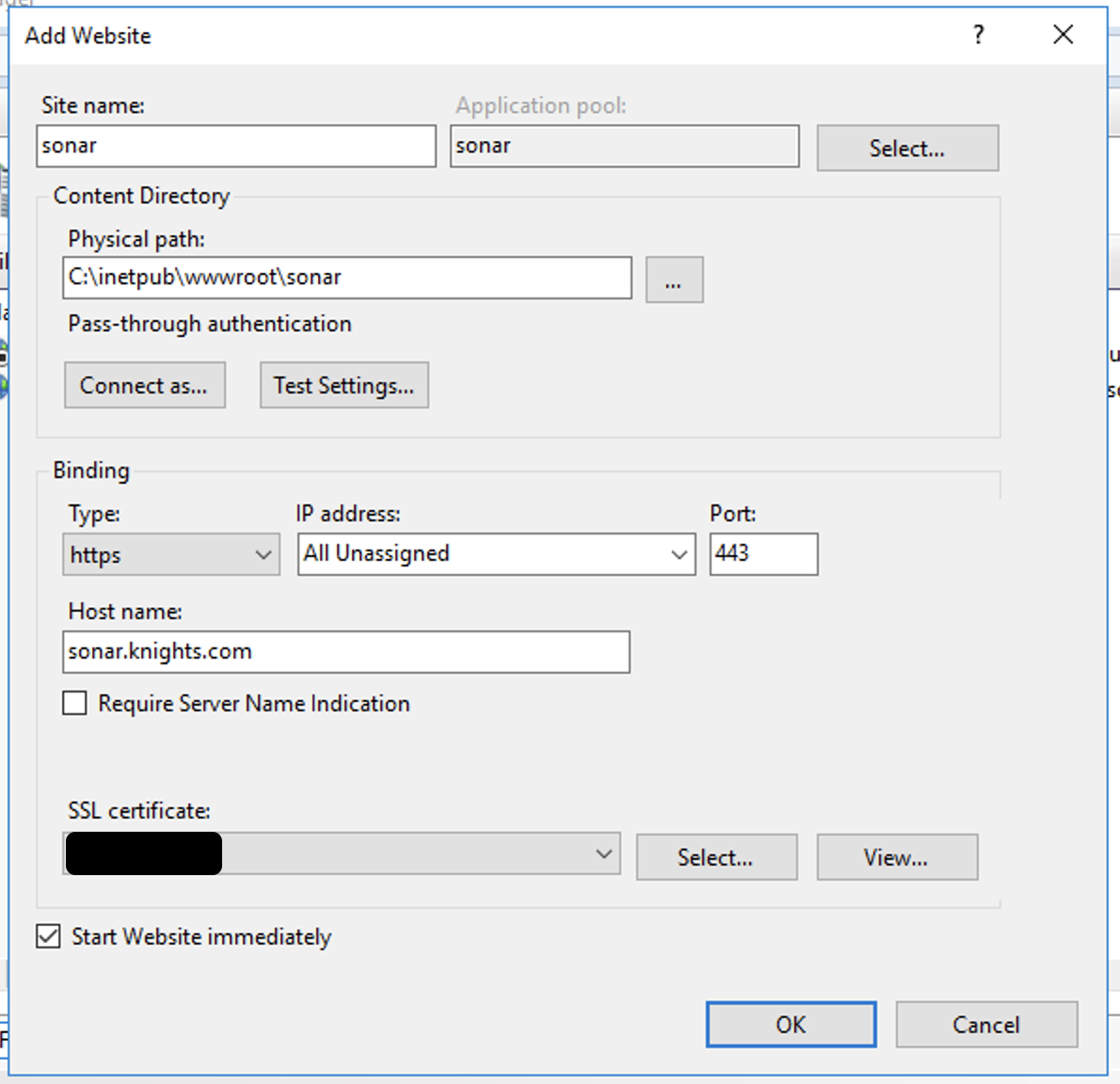
  • Select the IIS server and click add new Website create a website with SSL


  •  Select the website and go to URL Rewrite.

  • Then go to Add Rule
  • Create a rule sonarqube name make sure to select Enable SSL Offloading
  • eg: sonar.knights.com:9000

  
  •  Next select View Server Variables.

  • Set Server Variable.
  

  •  Next edit the URL Rewrite we have crated and go to Server Variables and Select the new variable we have created.
  • Now you have configured SSL for SonarQube.


Thursday, March 21, 2019

Email Tracking Tools

This are some of the free and paid Email Tracking tools.

  • Who read me - http://whoreadme.com/faq
  • Trace Email -  https://whatismyipaddress.com/trace-email
  • Pointofmail - https://www.pointofmail.com/
  • Yesware - https://www.yesware.com/
  • Contactmonkey - https://www.contactmonkey.com/resources
  • Readnotify - https://www.readnotify.com/
  • Getnotify - https://www.getnotify.com/
  • Didtheyreadit -  https://www.didtheyreadit.com/
  • Glockanalytics - https://glockanalytics.com/

Thursday, March 16, 2017

Footprinting Tools


Email address Verification :

  • http://www.verifyemailaddress.org
  • http://email-checker.net/check
  • https://hunter.io/search
  • https://portal.emailhippo.com/Bulk/Lists
  • http://verify-email.org/register/levels.html
  • Simplyemail 
    • https://cybersyndicates.com/2015/11/email-harvesting-with-simplyemail/

Thursday, November 24, 2016

Manage Wi-Fi Sense with GPO windows 2012 R2

To disable the Wifi sense  in  with the group policy in windows 2012 R2  first need to install the newest ADMX files

( check the following guide to how to install the ADMX files  https://www.blogger.com/blogger.g?blogID=9157947954397602792#allposts)

then go to group policy manager and go to

Computer Configuration \ Administrative Templates \ Network \ WLAN Service \ WLAN Settings\

and Desable Allow Windows to automatically connected to suggested open hostpots. to network shared by contracts and to hotspots  offering paid Service.


Installing ADMX files to windows 2012 R2 Server

I waned to disable Wi-Fi Sense in windows 10 in our environment with Windows Server 2012 R2 GPO as i go with the recommended method of Microsoft (https://technet.microsoft.com/en-us/itpro/windows/manage/manage-wifi-sense-in-enterprise)

Found the the that settings were not available in Windows 2012 R2 Server.

To over come this need to install the latest ADMX files that defined for Windows 10 and Windows server 2016.

Download the latest ADMX files form ( https://www.microsoft.com/en-us/download/confirmation.aspx?id=53430)

After extracting the files go to the folder


C:\Program Files (x86)\Microsoft Group Policy\Windows 10 and Windows Server 2016\PolicyDefinitions

Note : with default  Microsoft sending lot of language packs then remove the unnecessary language files.


Copy the all the files in to the policy directory.

 C:\Windows\SYSVOL\sysvol\examble.com\Policies

Now go the Group Policy  Manager and check the wither new settings are available.


Wednesday, October 19, 2016

Cant Log in to Mi Band app

If you encounter that you cannot log in to the MI band App in android do following.
  • log in to the mi account form a web browser (https://account.xiaomi.com)
  • then note account no show near your account name.
  •  
  • Now open the Mi Band app form the phone and type the account no as user name  and the password when you created the account.

Tuesday, October 11, 2016

Configure SMTP in Windows 2012 for Office 365

Install SMTP service from windows 2012 form add server role.

select  IIS and click next


Select SMTP form next window


Go to Internet Information Service (IIS) 6.0 Manager

and select  SMTP Virtual Server and go to properties.

In the General tab go to Advanced and select the ip address and port.
Go to delivery and select Outbound Security.

Select Basic Authentication

in the user name and password give the office 365 account username and password.

 In the Outbound Connections change the TCP port to 587


Then select Advanced give the smart host as.

SMTP.office365.com


Wednesday, September 7, 2016

Enable GUI in Windows Server 2012 R2 Core

To enable GUI to Windows Server 2012 Core do as follows

01. Mount the Windows Server 2012 ISO File
02. Open Power shell


Mount-Diskimage

ImagePath[0]: path to iso file
ImagePath[1]: leave blank


(Note : exit form the Power Shell mode)
03. Create a folder to mount the installation files

mkdir c:\mnt

04. get the index

dism /Get-WimInfo /WimFile:ISO file path

dism /Get-WimInfo /WimFile:d:\sources\install.wim 


(Note: the core instillation version in my case it was 4)

06.Mount the iso file with the created working directory

 dism /mount-wim /wimfile:d:\sources\install.wim /index:4 /mountdir:c:\mnt /readonly

07. Go to power shell mode

powershell

08. Install GUI feature 

install-windowsfeature server-gui-mgmt-infra,server-gui-shell -restart -source c:\mnt\windows\winsxs


This will restart the server and after the restart it will have the GUI interface.